
Loading...
Loading...
Loading...
Loading...
Loading...
Loading...
Loading...
Loading...
Loading...
PowerOn Pro is the fastest way to develop on the Symitar core platform and we're barely getting started with its feature set. Check out what's available now and what's coming to PowerOn Pro in the very near future.
Have a feature suggestion? Please let us know on or through our portal. We're always looking to improve our feature set to bring a better developer UX to the Symitar community.
the most complete and robust highlighting for the PowerOn language
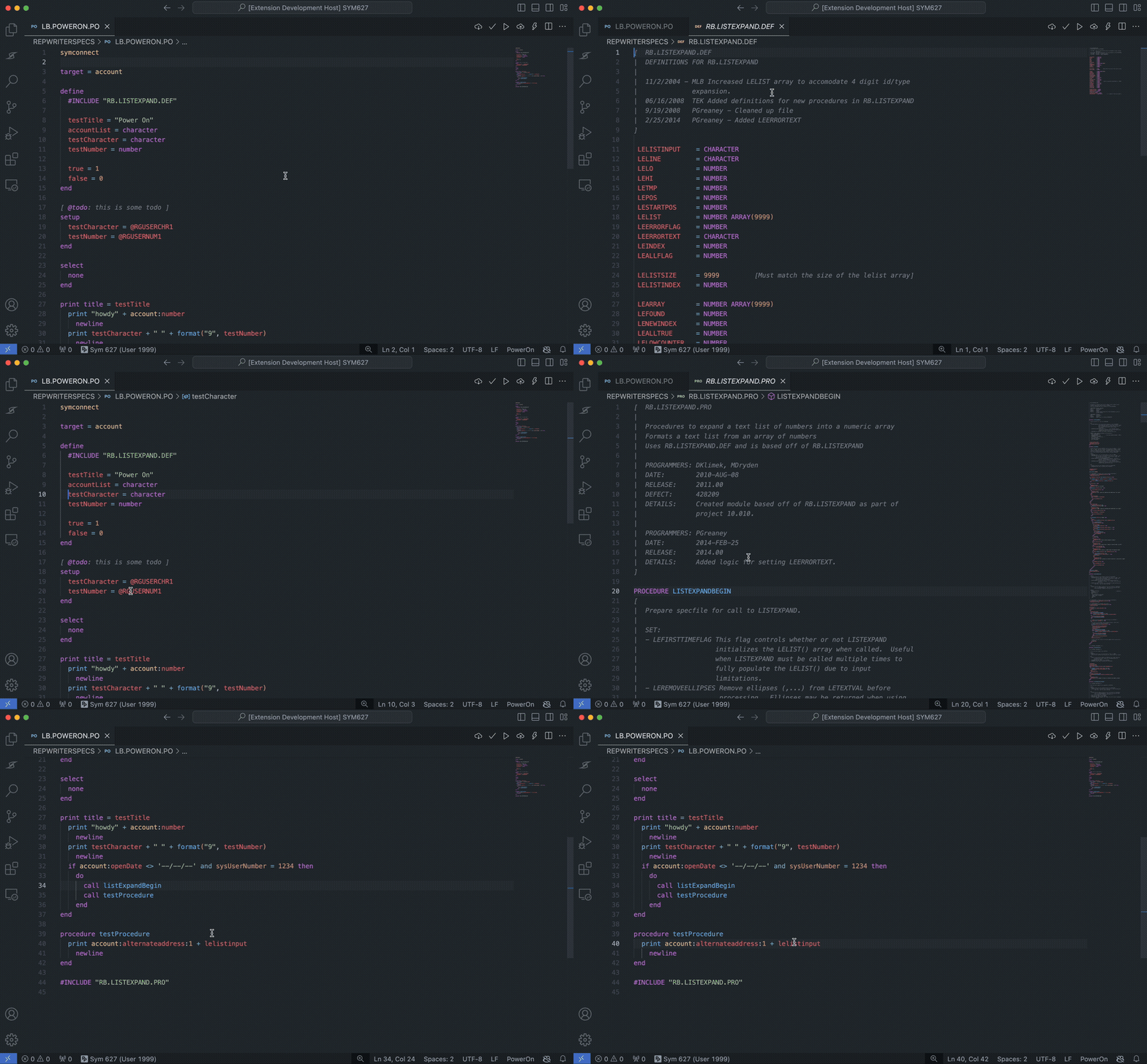
Available • Treat yourself to beautiful syntax highlighting for the PowerOn language to help you visually interpret your code on any available VS Code theme.
One more thing, we know many of your PowerOn files may not have an extension at all. As you open these, we'll automatically detect the PowerOn language and keep record of the association for future use 😎
Available • Quickly visualize what type of PowerOn is in your workspace with simple and beautiful file icons that distinctly set them apart from one another.
Available • Freely type away and let PowerOn Pro suggest completions for you. We've got you covered with completions for records, keywords, functions, and more!
Available • Navigate between PowerOn files with ease. Any #INCLUDE you have referenced in a file will be available for you to jump to with a simple click (CTRL + Click on Windows, CMD + Click on macOS). We also support cross-file variables and procedures.
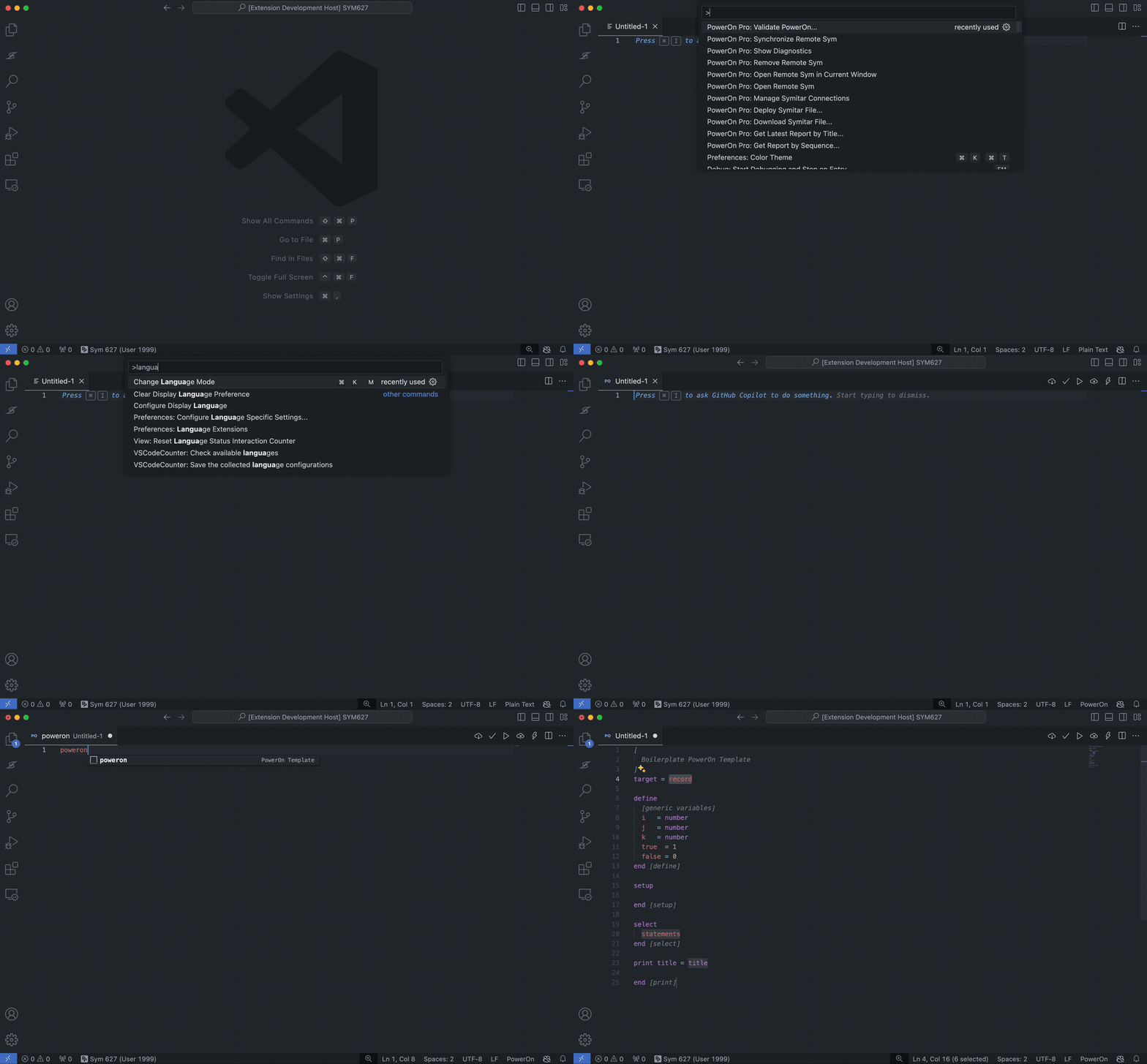
Available • We've included a few code snippets to help you get started with some of the most common PowerOn constructs. Just type the snippet prefix and hit Tab to expand the snippet.
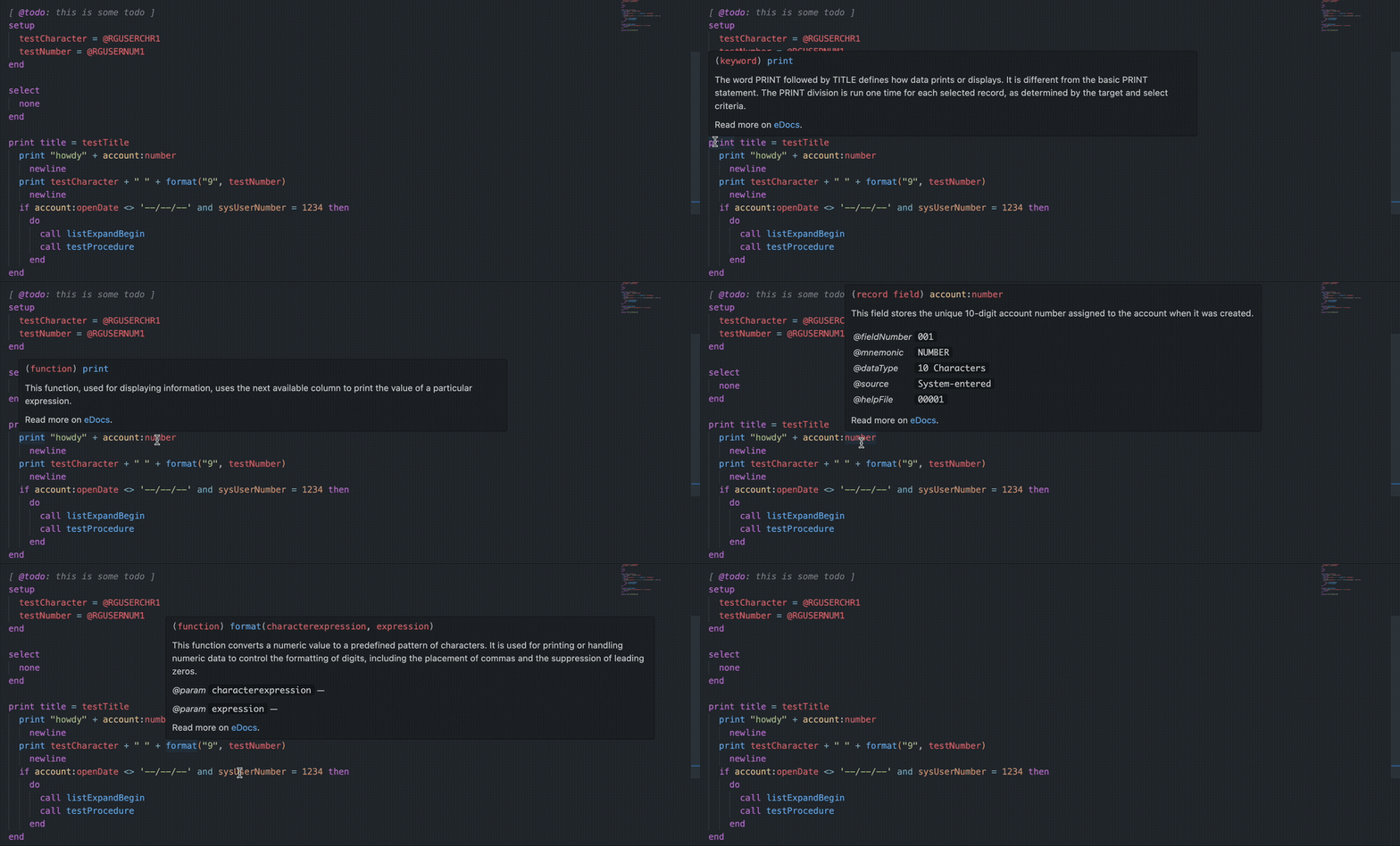
Available • We've bridged the gap between PowerOn development and documentation by making various Jack Henry eDocs references available directly on the keyword, function, and any of the special literals of the PowerOn language as a hoverable.
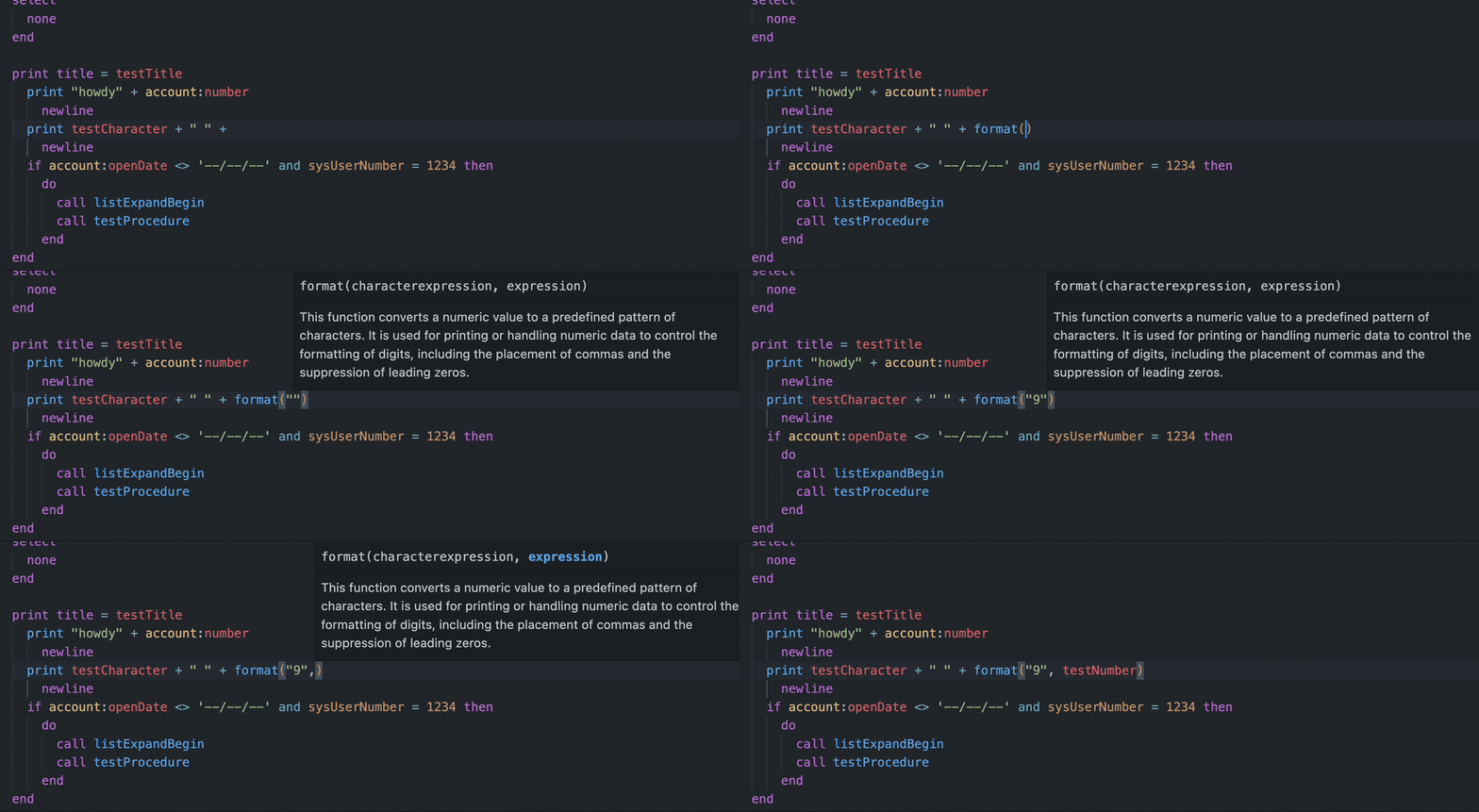
Available • Remembering all of the PowerOn functions and their parameters can be a challenge for even the most experienced developers. We offer function signatures that appear as you type to display which parameter is next as well as what it's for.
Available • With our syntax highlighting, we brought Docstrings to your PowerOn comments. Take it one step further by adding @TODO anywhere in a comment and we'll collect them for you to work through in a custom view.
Available • Enforce a consistent code style across your entire codebase by parsing and re-printing according to defined rules taking maximum line length into account and even case sensitivity.
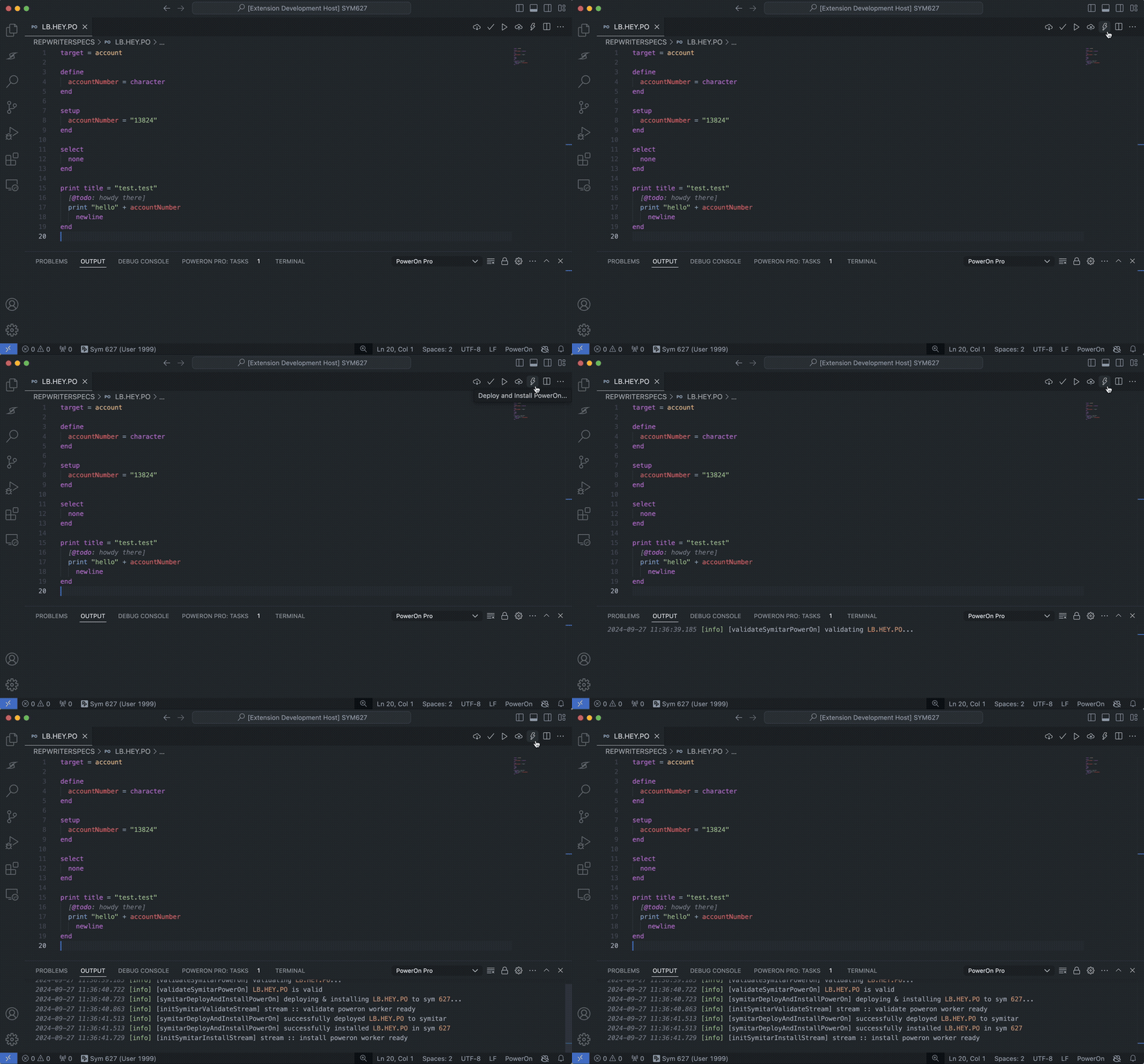
Connect your Symitar core to PowerOn Pro and take advantage of realtime PowerOn validation, deployments, and batch execution from within VS Code.
Available • Get validation feedback from Symitar as you save your PowerOn files.
Available • Choose to deploy or install your PowerOns to your Symitar core.
Available • Run your batch PowerOns and get the output directly in VS Code.
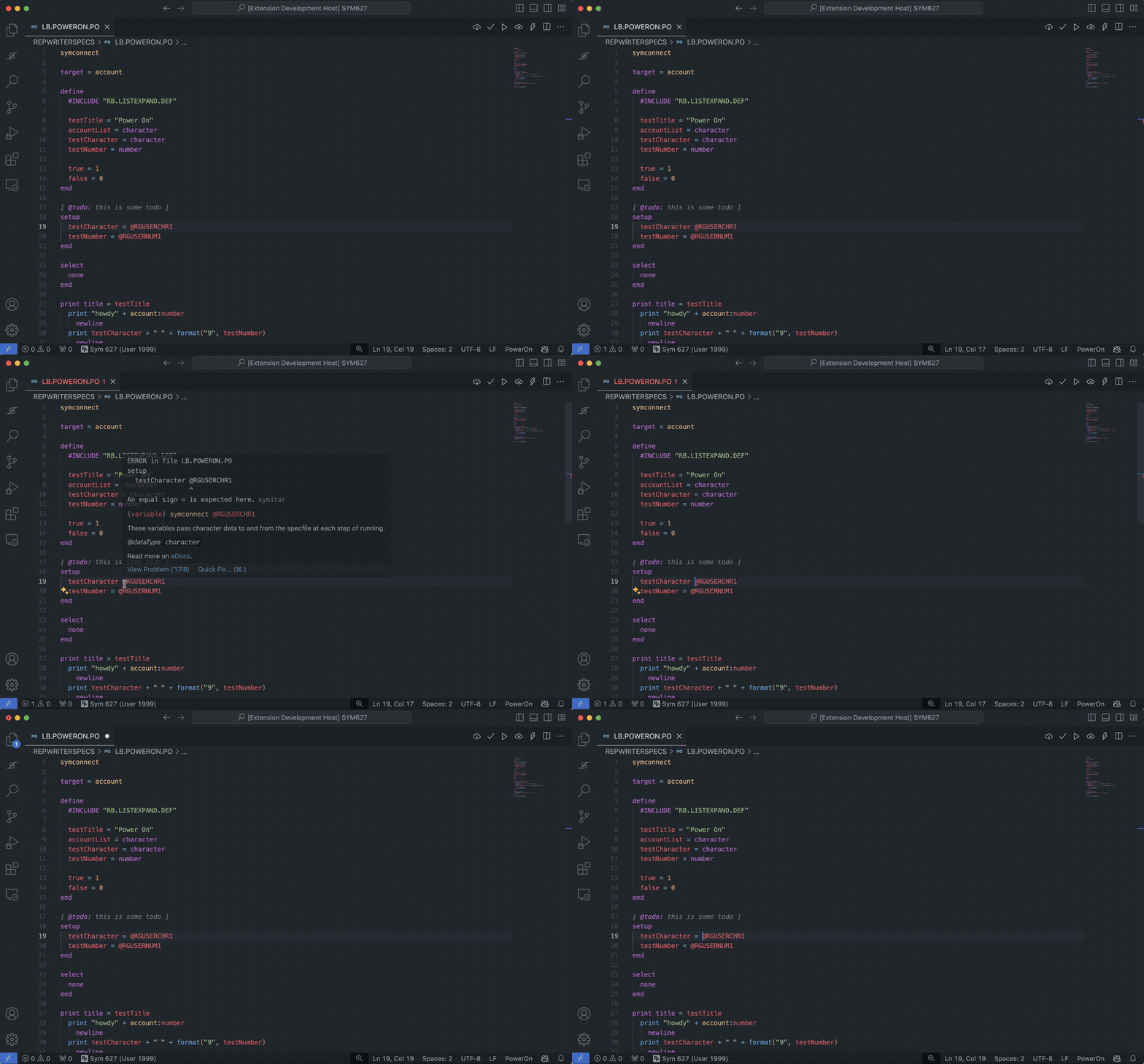
Plus / Continuous Development • Natively you have the ability to validate your PowerOn but this only identifies the breaking change starting at the top of the file. The Libum Semantic Analyzer adds realtime diagnostics for undefined and unused variables, syntax errors, mismatched DO / END blocks, data type mismatches, constant reassignment, expression validation, division by zero, dead branches, non-exhaustive conditional paths, field validation, function validation, and FMPERFORM / TRANPERFORM statement validation.
CodeLens reference counts are part of this Plus analyzer experience, showing N references above defined variables and procedures.
Diagnostics understand local #INCLUDE files and route include-file errors back to the relevant specfile instead of leaking unrelated diagnostics onto the active file.
Undefined variable diagnostics include a Quick Fix to add missing variable definitions, including creating the DEFINE section when the specfile does not have one yet. Parser diagnostics also understand Symitar-valid record aliases, such as SAVINGS TRANSFER, that map to underlying SHARE child records.
Plus / Available • Though the legacy SSH connection technically works, it's not 100% for every credit union and sometimes requires a few hoops to jump through to get it working. With HTTPs you connect directly to the Symitar Application Server to manage your PowerOns, LetterFiles, and HelpFiles.
Plus • We provide a robust custom view in VS Code that levels up the integration between PowerOn development and the Symitar core.
Available • We've created a semi-virtual workspace for you to freely navigate the LETTERSPECS, HELPFILES, and REPWRITERSPECS directories for any of your Syms.
Coming Soon • Currently a Remote Sym is literally intended to be a "virtual" editing on your remote Symitar host. Meaning, as you make edits they're deployed and inversely it will periodically sync to stay up to date with what other folks may be deploying to the remote as well.
This technically means, that if you were to develop in ( ) there is a potential to clobber files you've been editing locally, the next time you sync. To mitigate this, we're introducing a light weight Source Control Manager (SCM) to run the incoming changes through a diff editor to better protect your copy that way you still get the latest and great but have better autonomy of what your local state is.
Available • We are basically combining and adding our flavor to the UIs you find in Batch Control and Print Control to give you an incredible UX while working with batch output generated from your PowerOns. You'll have the luxury of quickly navigating through your Symitar reports as well as even launch accounts in Symitar Quest directly from our views.
Plus / In Development • PowerOns with HTML are becoming the standard for creating rich user interfaces available in Symitar - encapsulating these with htmlViewLine can be a bit cumbersome so we're introducing the ability to write HTML directly in your PowerOn files with full language support. We'll handle the translation whenever you choose to deploy!
Plus / In Development • To satisfy our vision of being the fastest way to develop on the Symitar core platform, it made a lot of sense to support both sides (Batch + Demand) of PowerOn development. That said, we're building a rendering engine for on-demand PowerOns to display from within VS Code preventing you from having to launch Symitar Quest to see your code come to life.
Plus / Coming Soon • Writing PowerOns for SymXchange typically involves a two-step process in order for the changes to reflect in your call:
Ensure the PowerOn is loaded in the SymX instance Common Parameters
Bounce the SymX instance device
This involves navigating through Symitar Quest and waiting for each of the UIs to load for you to perform the actions. With PowerOn Pro, we remove these requirements and handle the complete refresh lifecycle internally.
Plus / Coming Soon • Creating and editing Job Files in Symitar Quest can be a bit tricky given the strictly linear wizard-based UI. We have reimagined this user-experience with a beautiful UI and quite a few more controls to create / maintain these much more easily.
Available
an extended (built-in) icon theme with known PowerOn file extensions
Available
get prompted as you type with relevant and helpful completions
Available
quickly navigate definitions, references, and dependencies in your PowerOn
Available
get started faster with an extensible snippet library
Available
gain insight from eDocs into the keyword, function, template, or database record
Available
know what the PowerOn function does as you write it
Available
keep track of what's next for your PowerOn "todos"
Available
validate, deploy, install, or execute PowerOn files directly in VS Code
Available
Plus
Ensure all of your PowerOns conform to a consistent style
Available
Plus
analyzer-driven realtime diagnostics and CodeLens reference counts for PowerOn files
Continuous Development
Plus
perform the same actions from SSH on a more stable HTTP API
Available
Plus
get a semi-virtual workspace for the LetterFiles, HelpFiles, and PowerOn directories on any Sym
Available
Plus
don't worry about clobbering files as you sync, we'll funnel these through the source control manager
Coming Soon
Plus
level up the execution of your PowerOns with a robust reports view
Available
Plus
get the HTML syntax highlighting within your PowerOns but also forget about wrapping every line in htmlViewLine
In Development
Plus
choose an account and run on-demand PowerOns straight from VS Code
In Development
Plus
manage the full lifecycle of SymX PowerOns without opening Symitar Quest
Coming Soon
Plus
Skip out on the wizard prompts and use templates to prototype new batch jobs in seconds
Coming Soon
Supported file extensions
Currently we have file icons for .PO, .DEF, .SET, .PRO, .SUB, .FM, and .FMP. Any file without or with an arbitrary file extension in a known PowerOn directory will automatically be given the .PO file icon.


We're here for any questions or technical difficulties you might have!
was founded in 2020 by two devs who ❤️ the credit union community. We are a hyper-focused and talented team with breadth and depths of expertise in bringing first of its kind, trailblazing solutions to credit unions of all shapes and sizes.
Do you have a feature you'd like to see within PowerOn Pro? Well, we have a place just for that - head on over to our portal to vote on existing posts, or create a new post for that feature you really want or bug that needs to be squashed. Post your feature or finding and receive realtime updates as to where it is on our roadmap 🚀
Want to chat with the Libum team? Join our Libum Community server on and chat with our engineers to answer any burning questions you may have!
Co-Founder:
Email:
Discord: @dyylaaaannnnn
Co-Founder:
Email:
Discord: @nguyendon
Team: Development
Email:
Team: Sales
Email:
Team: Operations
Email:
See what others have reported and what we have in the queue to get fixed.
This list is maintained in a best effort fashion and may not reflect all known issues.
Want to report a bug? Please let us know by giving us a shout in the #poweron-pro channel on our or an email at .
If you've set up your Remote Syms and are attempting to synchronize but the files and directories appear and disappear or just don't seem to appear at all, this may have to do with the fact that your WSL environment doesn't have write access to the mounted path you're using for the Local Symitar Path setting.
Some users have shown resolved this by updating the wsl.conf in their WSL environment to include the following:
[automount]
enabled = true
options = "metadata,umask=22,fmask=11,uid=<your_uid>,gid=<your_gid>
uid - comes from running id -u in the WSL environment
gid - comes from running id -g in the WSL environment
After making the change, you will need to restart the WSL environment which can be done by running wsl --shutdown and wsl to start it back up again.
If you're seeing any sort of Permission Denied issue in logs or bubbled up through the notifications, this most likely has to do with you missing the SYM### group for the Sym you're pointed to for your AIX user.
First determine whether or not you have the right Symitar group for the Sym you're trying to use.
SSH into the Symitar host
Run the groups command from the $ prompt
From here, you may be missing the SYM### which is what's causing the permission denied failure when we try to write to a subdirectory within the Sym. To update your groups, check out the next section.
If you are indeed missing the target Sym group, you'll need to update it which will require elevated permissions. If you're on-premise, su or root should do but if you're with a data provider like , , or , you will likely need to reach out to them to perform the change.
Update using usermod
Be sure to check to make sure it was sucessful before retrying anything in PowerOn Pro.
# the '-t' flag assigns you a pseudo terminal
ssh <aix_user>@<aix_host> -t '/usr/bin/ksh'$ groups
staff SYM627# Note: <target_sym> will be the SYM### you're trying to connect to
usermod -a -G <target_sym> <aix_user>Keep track of changes to PowerOn Pro. This changelog is maintained in a best effort fashion and may not reflect all changes being made.
Fix undefined variable Quick Fix so it creates a missing DEFINE section in the correct location before adding the variable
Add diagnostics for mismatched DO / END blocks that leave a section unclosed before the next section begins
Fix false syntax diagnostics and semantic highlighting for aliased child records such as SAVINGS TRANSFER:TYPE
Fix semantic token coloring for variables, functions, fields, and records after complex call arguments involving string concatenation, record:field references, and nested functions
Fix online PowerOn validation with same-directory local #INCLUDE files after companion include validation changes
Delegate offline include validation to the shared Symitar library
Fix validation diagnostics for errors in local #INCLUDE files
Fail fast when Symitar hosts are unreachable
Quiet Remote Sym auto-deploy and auto-validation success notifications
Fix PowerOn syntax coloring and literal typing for dialog functions and SYSSYMDIRECTORY
Fix FMPERFORM diagnostics for parent subrecord paths
Improve FMPERFORM completions for parent subrecord paths
Correct validation specfile variable (@VALIDATE*) data types in the analyzer
Fix include-file diagnostics leaking onto the main file when an include path cannot be resolved
Fix inline comments not being highlighted inside multi-line FOR ... WITH and SORT / SELECT clauses
Add completions and hovers for the NONACCTNAME record
Add single-click preview and double-click pinning for reports opened from the sidebar
Fix duplicate entries in the Tasks panel for git diff and history views
Fix rename symbol and reference counting across library consumers
Fix type inference for predefined variables such as @RGUSERCHR* and @RGANSTEXT
Correct SymConnect and MemberConnect spec variable data types in the analyzer
Improve FMPERFORM parser recovery while typing incomplete SET statements
Add analyzer-driven semantic highlighting for variables, records, fields, procedures, constants, and literals
Add N references CodeLens above defined variables and procedures
Add diagnostics for constant reassignment, expression validation, division by zero, dead branches, and non-exhaustive conditional paths
Add
Add the Libum Semantic Analyzer for PowerOn
Add #INCLUDE file diagnostic routing to parent specfiles
Add GETFIELD*, GETDATA*, and VALIDATEFIELDSET function parameter completions
Add native Reports (Preview) alternative to Print Control
Add LOAN RATECHANGE and CTR BRANCH database records to language server
Fix burst SSH worker requests stability issues
Add support for CHECKORDER record to language server
Add hovers for records & improve inline fields
Fix issue where inputs were triggered incorrectly on PowerOn execution
Fix issue where Fetch Report by Title was returning first result in Batch Summary
Add powerondemand snippet
Add New PowerOn File... and New PowerOn Demand File... context commands
Fix issue where Untitled documents couldn't use snippets
Add rename symbol for defined variables and procedures
Add unique key (for <record> with) completions
Cleanup functions, keywords, and variables camelCasing
Fix misleading log messages for failed deployments
Add a useTabs formatting option
Add a formatOnSave formatting option
Add retries for batch execution polling on HTTPs
Add alignLogicalOperators to vertically align operators
Add expandParentheses to place ( and ) on their own line
Add spaceAroundOperatorsExclude
Add PowerOn Formatter (Experimental)
Fix issue with Division and Do/End colorizers
Fix issue where invalid User/Password on HTTPs validate wasn't captured
Fix issue where PROCEDURE snippet was malformed
Fix issue where document references use Remote Sym first
Fix issue where #INCLUDE files weren't being replaced for Offline Validation
Fix issue where #INCLUDES were spawning new SFTP channels
Fix issue where validation diagnostics weren't updated for HTTPS
Fix issue where divisions & system variables were tokenized in comments/strings
Add verbose client connector debug logs
Fix issue where Remote Syms would deploy on implicit save with commands
Fix issue where invalid PowerOns would appear to install successfully
Syntax highlighting hotfixes
Add function parameter descriptions
Add completions to function parameter enumerations
Add return types to function hovers
Fix issue where PowerOn tokens in strings/comments would break divisions
Fix issue where snippets weren't included in completions
Add new command Clone Sym Directory
Add new command Compare with another Sym
Fix issue where Windows wasn't removing Remote Syms properly
Increase frequency for Remote Sym download progress logs
Add support for SFTP to Remote Sym (WSL no longer required)
Add update command for Remote Sym
Patch CSP for Webviews
Add dynamic download commands for Remote Sym workspaces
Add file association setting for language flexibility
Improve error handling across extension
Lazy-loading for SSH workers to prevent AIX user lockout
Add reset for force disconnect on every Symitar action
Add support for custom #INCLUDE paths
Add #INCLUDE file for deployments during validation
Fix #INCLUDE deploy clobbering
Add a setting for force disconnection after 'n' hours
Add custom .PRO and .DEF completions for #INCLUDE files
Fix document references for #INCLUDE files in subdirectories
Move define variable diagnostics to Free version
Add remote script execution timeout and PID cleanup
Fix issue where validation from #INCLUDE file appears in primary PowerOn
Fix issue with terminated batch reports for HTTPs connector
Skip diagnostics check for directories that don't exist
Add new file diff check between local directory and Sym
Fix autocomplete issue with THEN keyword
Fix Symitar command error handling
Fix definition links for #INCLUDE files and procedures
Fix subfolder file deployments
Increase SSH fetch report timeout to max 60 mins
Fix pattern issue with FMPerform
Add a new snippet for PROCEDURE
Update order of snippets in autocompletions to be first
Fix autocomplete issue with ELSE keyword
Fix issue with warning expiration pattern
Prevent autocomplete from rendering on initial spaces
Add auto-selection for PowerOn file type on deploy & install
Add remote file listing for downloads
Add batch report cache for in-editor viewer
Fix issue where problems wouldn't clear on document close
Add notifications for batch completions
Add multi-output support for batch execution on HTTPs
Fix regression for multi-directory deployments
Cleanup DO and END highlighting
Fix unnecessary UNTIL term in snippets
Add DO and END block matching
Add DO and END semantic depth coloring
Add configuration for batch reports (output, editor, or viewer)
Fix status bar not properly reflecting state
Add cosmetic changes to subscriptions UI
Update successful sign-in page
Updated webviews & subscription messaging
Fixed script path issue from restructure
Official release
Add subscription UI to side bar
Remove preferred case from defined variables & procedures
Switch to PowerOn Pro activity bar
Suppress noisy standalone include diagnostic logs
Fix reference CodeLens on non-declarations in spec files without a DEFINE section
Fix false-positive invalid mnemonic diagnostics for LOANAPP PERSON and NONACCTNAME name fields
Fix report viewer and subscription view activation states
FOR EACH WITHAdd FMPERFORM / TRANPERFORM SET field completions, hovers, and signature help
Improve syntax highlighting for operators and literals in FOR WITH and SORT / SELECT clauses
Add new diagnostic settings: fieldValidation, functionValidation, statementValidation, and syntaxErrors
Add parser-based diagnostics replacing regex-based validation
Add undefined variable quick fix and DEFINE section completions
Fix failure mode for SSH transfer permission changes
Fix Plus subscription defaulting to active before validation
Improve auto-completions with new trigger characters for function parameters
Fix issue where native SSH deployments on all Symitar files weren't applying the correct SYM### group
Improve varying connection statuses including Permission Denied
Fix issue with record completions that were out of context
Improve completions for multi-word records (e.g. share name)
Fix issue where Untitled documents threw various LSP errors
Fix issue where VS Code would steal focus when updating webviews
Prevent trigger in general contexts
Update PowerOn validate diagnostics to remain until file change
Add forced document newline on save (requirement for Quest)
Add LSP support for Untitled documents with poweron as language
Fix issue with alignLogicalOperators for nested parentheses
Fix interactive PowerOn execution inputs for SSH and HTTPs connectors
Update expandParentheses to use configured indentation
Fix issue where SETUP division was doublespacing right side =
Fix issue where commented inline keywords were breaking the formatter
Simplify spaceAroundEquals to spaceAroundOperators
Improve syntax highlighting, hovers, and tokenization
Move to @libum-llc/symitar library for SSH and HTTPS connectors
Various performance improvements & refactorization
Fix validation diagnostics w/tab indentation
Update fetching batch reports for SSH connections
Discover how to personalize your PowerOn Pro user experience.
PowerOn Pro ships with a number of configurable settings to personalize your VS Code experience as you develop.
If more than 50% of your active workspace has known PowerOn file extensions, a file association for poweron on the path will be added automatically.
true
Controls how #INCLUDE files are deployed when deploying a PowerOn (only for non-Remote Syms).
Controls when your active Sym connection should automatically disconnect.
Controls when the language server runs PowerOn validation. Useful if you like to validate your PowerOn file each time you save.
Batch related configuration options specific to the SSH connection type.
The maximum time to wait (min) for the completion of a batch PowerOn run.
The batch queue number to use when poweronPro.batch.queueSelection is set to override.
Controls how the batch queue is selected for a batch PowerOn run. The available options will either use the first available queue, prompt you to select a queue, or use the override value set by the setting.
Controls where batch reports are displayed.
The maximum time (sec) to wait for the initialization of the Symitar CLI workers which is only used with an SSH connection type to Symitar.
Enables debug logging for the @libum-llc/symitar library. The logs will appear in the PowerOn Pro output channel.
Real-time diagnostics configuration options which are triggered when the PowerOn changes in an active text editor.
Plus Shows incorrect variable assignments and invalid data type declarations as errors for PowerOn files.
Plus Warns when a constant is reassigned in PowerOn files.
Plus Shows undefined variables or procedures as errors for PowerOn files.
Plus Validates operator and operand type compatibility in expressions for PowerOn files.
Plus Validates field mnemonics against their record types. For example, using a SHARE field mnemonic in a context that expects an ACCOUNT field will be flagged as an error.
Plus Validates function names and parameter counts. Unknown function names and incorrect numbers of arguments will be flagged as errors.
Plus Validates FMPERFORM and TRANPERFORM statements, including record type compatibility, allowed operations, TARGETFILE keyword usage, and transaction codes.
Plus Shows syntax errors detected by the PowerOn parser and analyzer. These are structural issues in your PowerOn code such as missing keywords, unexpected tokens, malformed statements, mismatched DO / END blocks, or unsupported record and field references.
Plus Shows unused variables as dimmed for PowerOn files.
Plus Shows an N references CodeLens above defined variables and procedures.
Configuration options for the PowerOn code formatter.
Align = signs in DEFINE sections for table-like readability.
Align logical operators (AND, OR) vertically at the end of each line in multi-line conditions. Forces line breaks at each operator.
Expand parenthesized expressions onto multiple lines with opening/closing parentheses on their own lines and content indented.
Automatically format PowerOn files when saving.
Number of spaces per indentation level (or tab width when useTabs is enabled).
Casing for PowerOn keywords, database records, and fields (e.g., TARGET, ACCOUNT, CLOSEDATE).
Maximum consecutive blank lines to preserve within divisions.
Maximum line length for PowerOn code before wrapping.
Number of blank lines between major divisions (TARGET, DEFINE, SETUP, SELECT, SORT, PRINT, TOTAL, PROCEDURE).
Add space after comma delimiters in function parameters (e.g., FUNC(a, b) vs FUNC(a,b)).
Add spaces around all operators: assignment (=), arithmetic (+, -, *, /), and comparison (<>, <, >, <=, >=). Logical operators (AND, OR, WITH
Comma-separated list of statement types to exclude from space-around-operators formatting for the = operator (e.g., COL,DATASIZE).
Use tabs instead of spaces for indentation.
Uppercase all identifiers (variable names, procedure names). PowerOn is case-insensitive; some shops prefer all-caps for mainframe consistency.
Additional absolute directory paths to search for #INCLUDE files. These directories will be searched in addition to the directory of the PowerOn file being processed.
Plus The root path where your local Sym directories are synchronized. This is a required field for the feature and it's recommended to set as a path not directly in a typical folder structure for projects.
Controls whether a randomly named PowerOn is created, uploaded for validation, then deleted.
Controls the case of keywords, functions, variables, and records. Additionally, you'll see this reflected in other relevant areas such as hovers and snippets.
Plus Enables analyzer-driven semantic syntax highlighting with distinct tokens for variables, records, fields, procedures, constants, and literals.
Plus The number of files to download simultaneously when using SFTP sync (used by Remote Syms and Reports).
Plus Controls how Remote Syms are synchronized with the Symitar server.
sftp: Use SFTP for synchronization (no external dependencies required)
rsync: Use rsync for synchronization (requires WSL on Windows, rsync and sshpass installed)
Configuration options for the Symitar Explorer Reports feature.
Plus Background sync interval in minutes for reports. Set to 0 to disable background syncing.
Plus Number of days of reports to keep locally synced.
The port to use when connecting to the Symitar host. For almost all cases this should be 22 but if you have port-forwarded and need the flexibility to use SSH over a different port, this is how you'd do it.
true or false
off
off, prompt, or silent
never
never, 1 hour, 4 hours, 8 hours, or 12 hours
off
off or onsave
15
Between 1 and 60
0
Between 0 and 3
first
first, prompt, or override
editor
output, editor, or poweron-pro
30
Between 5 and 120 seconds
false
true or false
false
true or false
true
true or false
true
true or false
true
true or false
true
true or false
true
true or false
true
true or false
true
true or false
true
true or false
true
true or false
false
true or false
false
true or false
false
true or false
false
true or false
1
Between 0 and 8
upper
upper, lower, or preserve
1
Between 1 and 3
80
Between 40 and 200
1
Between 0 and 5
false
true or false
false
true or false
--
Comma-separated list of statement types
false
true or false
false
true or false
[]
List of any local directory paths
--
Any local directory path
true
true or false
upper
upper, lower, or camel
true
true or false
20
Between 1 and 50
sftp
sftp or rsync
5
Between 0 and 60
15
Between 1 and 360
22
Any available port
Just an FYI.
Disabling this feature will automatically "publish" your PowerOn with each validation. We believe you shouldn't have to commit something to Symitar in order to check whether it's valid, that's why we defaulted this setting to true.
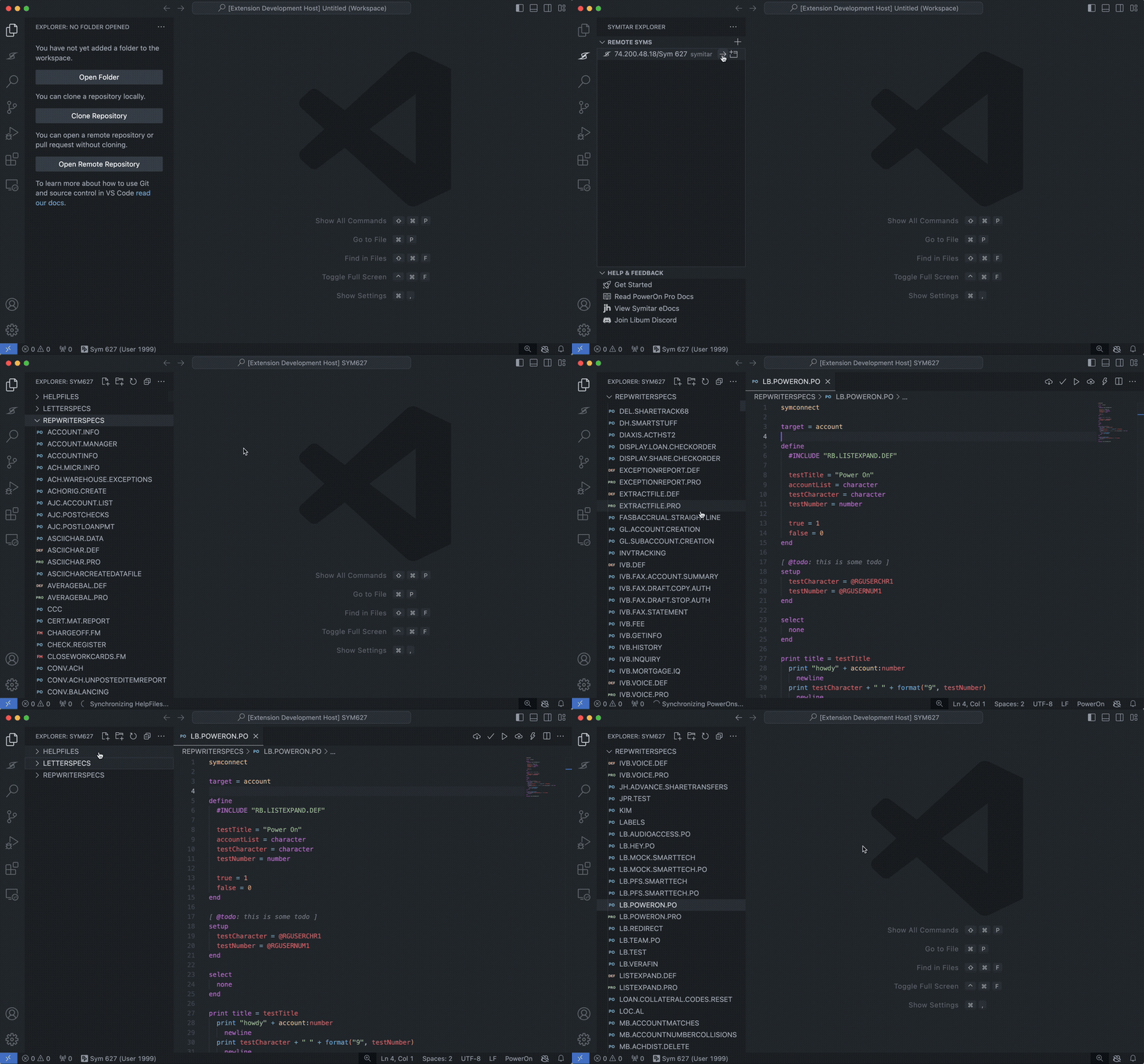
At the time of writing this how-to, to use the Symitar Explorer - Remote Syms feature we require the use of common Unix utility called rsync to manage the local directories for each Sym which we refer to as "semi-virtual" workspaces.
Now, we're aware that most of the Symitar developers out there are on a Windows workstation and rsync isn't something that's natively available. Sure there's technically a way to get it running using Windows binaries but fortunately for us Microsoft gave us the ability to install a Linux distribution of our choosing through something called Windows Subsystem for Linux (WSL).
Already have WSL working on your machine? Feel free to skip down to if you already have a Linux distribution created via WSL or if you're comfortable with handling the deps yourself.
We recommend you follow the latest installation guide, Install WSL, by Microsoft. The distribution you choose shouldn't matter as long as it comes with rsync already installed.
In order to not prompt you 1,000 times while we manage the synchronization between your Remote Sym and local directory, we use another popular utility called sshpass. The following steps walk you thought how to set this up on Ubuntu.
Using Advanced Packaging Tool (APT), make sure your sytem has been updated with the lastet packages via the following commands:
First make sure you're in your wsl instance:
Next, from the $ prompt, go ahead and update your apt packages:
After typing in your Ubutu user password, you should see something like the following:
Finally run sudo apt install sshpass (if you've already installed, the output will look similar to the following)
After installation or if you have an existing WSL distribution you're working with, here are the simple commands to check if you meet the dependencies.
Run which rsync to confirm it exists in your /bin directory.
Run which sshpass to confirm it exists in your /bin directory.
wsl command from a PowerShell prompt in Windows 11.sudo apt update command within a WSL Ubuntu instance.sudo apt update on WSL Ubuntu instance.sudo apt install sshpass on WSL Ubuntu instance.which rsync on a WSL Ubuntu instance.which sshpass on a WSL Ubuntu instance.


Know what commands are available and exactly what they do.
PowerOn Pro comes equipped with several built-in VS Code commands this page gives the context for each one.
No matter what workspace you have opened, you can always click on the PowerOn Pro logo in the status bar () to launch the menu for the most common commands.
Deploys the target PowerOn to the active Symitar connection and installs it for on-demand use. It's also accessible through the explorer context menu for Remote Syms and as a button ( ) in the active editor title (on the top right).
Deploys the target file (Data, Help, Letter, or PowerOn) to the active Symitar connection. It's also accessible through the explorer context menu for Remote Syms and as a button ( ) in the active editor title (on the top right).
Downloads the target file (Data, Help, , or ) from the active Symitar connection. It's also accessible through the explorer context menu for Remote Syms and as a button ( ) in the active editor title (on the top right).
Fetches the latest report by title (prompted or parsed from PowerOn in the active editor) from the active Symitar connection.
Fetches a report by their sequence number from the active Symitar connection.
Opens a menu where you can switch to and add new Symitar connections.
Opens the PowerOn Pro output which displays the extension logs for debugging and general insight.
Opens a menu where you can go through the prompts for selecting a configured Remote Sym.
Executes the batch PowerOn in the active editor. It's also accessible through the explorer context menu for Remote Syms and as a button ( ) in the active editor title (on the top right).
Opens a menu for selecting a Remote Sym to synchronize.
Validates the PowerOn the active editor. It's also accessible through the explorer context menu for Remote Syms and as a button ( ) in the active editor title (on the top right).


Get up and running with PowerOn Pro.
PowerOn Pro brings a complete language server, direct integration to Symitar, and an incredible UX to level up your credit union's development toolkit through Visual Studio Code.
More of a TL;DR developer? Feel free to jump down to the section where we cover the "essentials" for getting up and running.
This quickstart is designed to help you get your first Symitar connection created in the PowerOn Pro extension. Through this quickstart, you will learn:
How to get PowerOn Pro installed
Overview of some of the basic concepts of PowerOn Pro
How to use a Remote Sym
If you run into any challenges or have questions getting started, please join our on Discord.
There are two methods for installing the PowerOn Pro extension.
Using the install link on the Visual Studio Marketplace (ref. )
Selecting the Extensions button ( ) in VS Code and searching for "poweron pro"
Start by clicking the PowerOn Pro logo ( ) on the bottom left of the VS Code status bar. This will launch the PowerOn Pro menu for you to be able to manage your connections.
Next, select "Click to manage connections..."
Select "Add new Connection +" followed by either "SSH" or "HTTPs" depending on your connection preference and capability of your Symitar host.
This provides a brief overview of each input box you'll receive while creating an SSH connection.
Once you've gone through the prompts, you should expect to see ( ) in the status bar of VS Code (bottom left). Anything different means you may have had an issue connecting or have only be able to establish a partial connection.
Please refer to the Required input (SSH) for the context on the majority of the required inputs as they're nearly identical with the exception of the following:
From the activity bar (on the left-hand side), select the Symitar Explorer button ( ) and if you've already followed as well as the required dependencies installed on your machine, you should see the "Open Remote Sym" in the view.
Select "Open Remote Sym" and you should expect to see a menu giving you a selection from available Symitar connections.
After selecting the preferred connection, you will find a list of available Syms (based on the individual connections you've created) as a menu as well.
Selecting a Remote Sym here will automatically do the following:
Create a new directory ( /<symitarHostname>/<symNumber> ) using the configured Local Symitar Path as the root
Update the VS Code workspace at that local folder
Begin synchronizing the configured directories (e.g. /HELPFILES, /LETTERSPECS, or /REPWRITERSPECS
All of the available commands within PowerOn Pro are listed on the PowerOn Pro Commands page and can also be listed by opening up the Command Palette (Ctrl + Shift + P) and typing "PowerOn Pro".
To create a connection (SSH or HTTPs), use the Manage Symitar Connections command
If you want to open a Remote Sym you'll need first set a root path in the setting as well as have both rsync and sshpass utilities via WSL (ref. )
Symitar Hostname
The endpoint by which you connect to the Symitar host
93.455.43.232 or symitar
Symitar Username
Your username for the AIX / Symitar host
Symitar Application Server Port
The port which your SymAppServer communicates over. This is typically 42 + symNumber unless you're running at the SYSTEM level.
Read more on .
42627
What's the difference between SSH and HTTPs? In the context of a Symitar connection, uses what we refer to as the Command Line Interface (CLI) over the SSH protocol (aka Symulate or Episys Text Mode). This is nifty utility but unfortunately is explicitly disabled for some credit unions and can sometimes be unstable. Additionally, we aren't sure how much longer it will around.\
For a connection over , an API over the Symitar Application Server is used to make direct calls to the Symitar host. This is a much more stable design pattern and should generally be available to every up-to-date credit union.
Having trouble connecting? For any consistent connection issues or even general questions, feel free to let us know on or by emailing us at .
Appreciate File Icon theming?
We've created a custom File Icon theme for VS Code (extends the default vs-seti icons) that will turn this:
into this:
Just open up the Command Palette (Ctrl + Shift + P) and type "File Icon Theme" and select to enable it.
libum
Symitar Password
Your password for the AIX / Symitar host
hunter2
Sym Number
The directory (aka Sym) number for your connection
627
Symitar User Number
Your "Symitar Quest" user number (just the number)
1995
Symitar User Password
Your "Symitar Quest" password (just the password)
{symx-user-password}


PowerOn Pro is a Visual Studio Code Extension created to give developers all of the tools they'd need to efficiently write, run, and debug PowerOn code for the Jack Henry™ credit union core system, Symitar.
Jump right in to the Quickstart
Discover what's possible with PowerOn Pro Capabilities
Check out our Libum Community on Discord
Learn about our
PowerOn is a procedural language which provides a direct interface to the Symitar database. It offers record accessors which map directly to the Symitar Record Structure as well as some in-built utility functions to serve as tools when constructing a PowerOn specfile.
You can read more about PowerOn on the .